Report Disposition Windows Report Disposition Windows
When the user prints any report, the system will display the following disposition window. This window provides the user with a number of options for preparing the report.
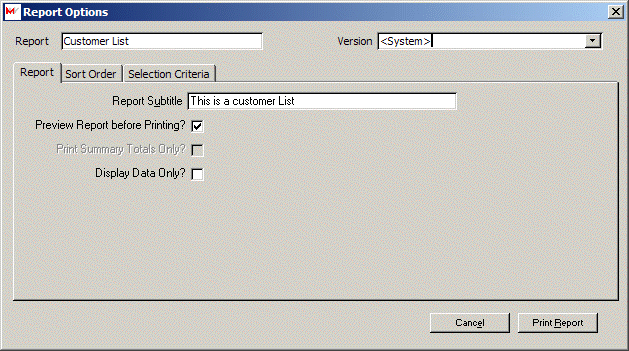
Report Subtitle: Enter a phrase or description that will be printed on the report as a subtitle.
Preview Report Before Printing?: If this box is checked, the system will automatically display the report on the screen. If the box is not checked, the report will be sent directly to the default printer.
Print Summary Totals Only?: If this box is checked, the system will print only the total sections of the report. The detail of the report will not be printed.
Display Data Only?: If this box is checked, the system will generate the report, but will not print the data in the report format, but display it on the screen in a datasheet view. This view can be sent directly to Excel for further analysis.
Version: If the user has saved alternate versions of this same report, the user may select one of these alternate versions from the list provided. The versions store alternative sort orders and selection criteria.
 If this button is selected, the process is cancelled and no report is prepared.
 When this button is selected, the report is prepared.
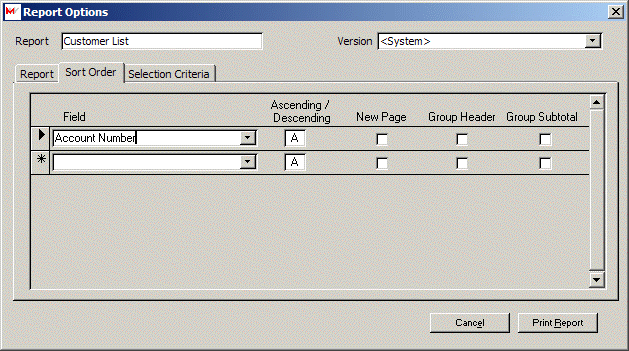
The system uses this information to determine the order of records presented in the report.
Field: From the list provided, select the field of interest.
Ascending/Descending: Enter (A)scending or (D)escending indicating the order of the sort for thisfield.
New Page: If this box is checked, the system will begin a new page every time the value of this field changes.
Group Header: If this box is checked, the system will print any information defined as the Group Header on the selected report.
Group SubTotal: If this box is checked, the system will print any information defined as the Group Subtotal on the selected report.
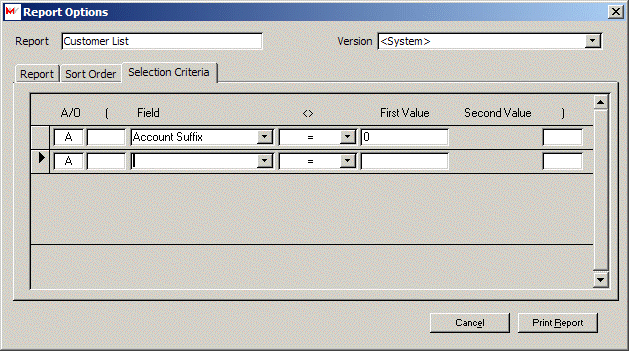
When the system uses this information to filter records, it compares the record to the filter information. If the record meets all of the selection criteria, then the record will be included in the query or report. If it does not meet all of the criteria, then the record will be excluded.
A/O: Indicates whether the record must all of the criteria (A = And) or can meet at least one element of the criteria (O = Or).
(: The parentheses allow the user to group criteria so that it is evaluated as one unit.
Field: The system will display a list of the fields that are available for defining selection criteria. The user should select a field name from the list provided.
<>: This field indicates the relationship between the field and the value(s) entered. The user may select from the list provided.
First Value: This field is the value that will be compared as per the selected relationship to see if the criteria is met.
Second Value: This value is available only if the btw (between) relationship is selected.
): The parentheses allow the user to group criteria so that it is evaluated as one unit. The number of open parentheses must match the number of closing parentheses.
The following illustrate some examples for using selection criteria.
Example 1:
The user wishes to select all active accounts (specified by an account suffix of ‘0’) in Book A032.
For the record to be selected the account suffix must be equal to ‘0’ and the book number must be equal to A032.

Example 2:
The user wishes to include all records that have a process date between 1/1/2002 and 12/31/2002.

Example 3:
The user wishes to include all records that are associated with account 1101 or 1200. In this example, the critical item is to change A/O to be O. Because there is no mention of the account suffix, the query/report will include both active and final accounts.

Example 4:
This is the same as Example 3 with the exception the report is limited to only active accounts by the evaluation of the account suffix. Parentheses are included so that the system evaluates the account numbers as a single unit.

The system allows the user to store the sort order and selection criteria entered for a system report or a generalized query. Once the report has been previewed and then closed, the system will display the following window.

If the user responds Yes, the following window will be displayed.
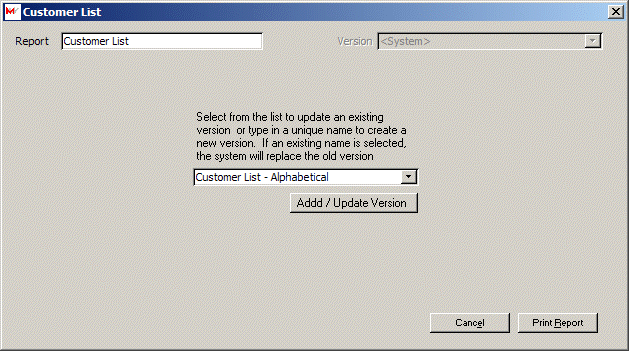
The user may now enter the name to save this version. If the name already exists, the system will replace the existing version. The next time the report is run, the user has the option of selecting the saved version on the disposition window.